



Off Topic (as its Gibson)
8 posts
• Page 1 of 1
Off Topic (as its Gibson)
 by ala1940 » 02 Aug 2012, 20:32
The Gibson Les Paul as Les intended :- http://www2.gibson.com/Products/Electri ... ric-Guitar ,
- ala1940
Re: Off Topic (as its Gibson)
by JimN » 02 Aug 2012, 21:10
Actually, that version was created entirely due to a manufacturing error when the factory made the earliest batch of production guitars with an inadequate neck pitch which, when combined with the arched top of the body, meant that it was impossible to fit a normal bridge on top of the arch. Hence the tailpiece, screwed down at the bridge point, with the strings fitted underneath, pulling up against the screws.
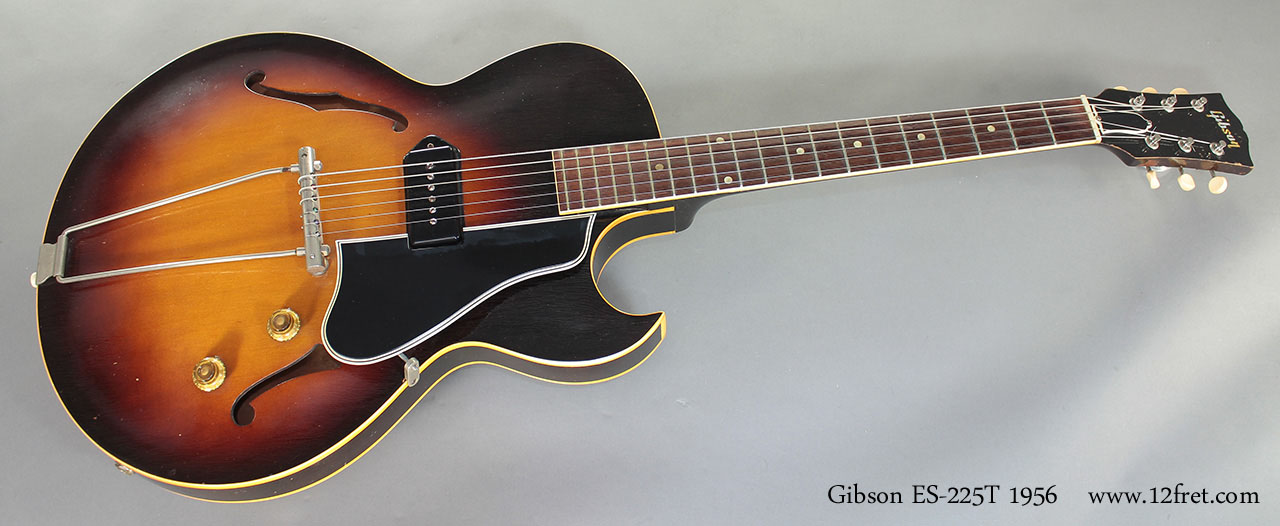
Les certainly never intended that, though the same tailpiece/bridge was fitted to at least one other Gibson guitar, with the strings, as you'd expect, fitted over the top:
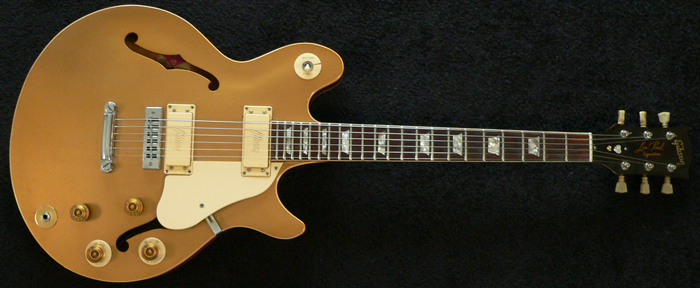
There's a school of thought that given Les's continued use of his self-built semi-acoustic "clunkers" for recording even after the release of the Gibson guitars, that the nearest Gibson to his "ideal" was probably the ES-335. The late 1960s saw a 335-style Les Paul in the form of the semi-ac "Les Paul Signature" model:
However, Les had other ideas and his preferred model for forty years was the Les Paul Recording (also made in slightly different versions as the "Personal"), which is not the same size as the more familiar Les Paul solids:

JN
Les certainly never intended that, though the same tailpiece/bridge was fitted to at least one other Gibson guitar, with the strings, as you'd expect, fitted over the top:
There's a school of thought that given Les's continued use of his self-built semi-acoustic "clunkers" for recording even after the release of the Gibson guitars, that the nearest Gibson to his "ideal" was probably the ES-335. The late 1960s saw a 335-style Les Paul in the form of the semi-ac "Les Paul Signature" model:
However, Les had other ideas and his preferred model for forty years was the Les Paul Recording (also made in slightly different versions as the "Personal"), which is not the same size as the more familiar Les Paul solids:
JN
Last edited by JimN on 10 Jan 2018, 17:28, edited 1 time in total.
-
JimN - Posts: 4559
- Joined: 17 Sep 2009, 23:39
Re: Off Topic (as its Gibson)
by RayL » 03 Aug 2012, 07:52
Jim,
A quick thank you for using pictures that fit the screen i.e. that don't have scroll bars.
Ray
A quick thank you for using pictures that fit the screen i.e. that don't have scroll bars.
Ray
-
RayL - Posts: 1247
- Joined: 16 Sep 2009, 16:25
- Location: Carshalton, Surrey
Re: Off Topic (as its Gibson)
by AlanMcKillop » 03 Aug 2012, 09:17
I wish I knew how to post pictures lol, I guess the size has something to do with converting any pics to web format size (which I can do), but get them onto the forum? no success up until now. 
I used to have a LP Recording in the 70's but foolishly (like so many), it was another guitar that I let go and now regret bitterly.
I used to have a LP Recording in the 70's but foolishly (like so many), it was another guitar that I let go and now regret bitterly.
-

AlanMcKillop - Posts: 1187
- Joined: 19 Sep 2009, 20:04
- Location: Motherwell, Lanarkshire
Re: Off Topic (as its Gibson)
by Uncle Fiesta » 03 Aug 2012, 09:36
I've had THREE Les Pauls and let them all go.
Damn!
Damn!
-
Uncle Fiesta - Posts: 1148
- Joined: 27 Apr 2012, 23:31
- Location: near Gainsborough, England
Re: Off Topic (as its Gibson)
by JimN » 03 Aug 2012, 10:10
I've had four Gibson Les Pauls and let one of them go (as a gift to my son, who is a huge Les Paul [as in the the man himself] fan). I still have the other three.
Ray: It was a fluke. The pictures turned up by Google image search just happened to be the right size (probably because they were already in use on other websites).
JN
Ray: It was a fluke. The pictures turned up by Google image search just happened to be the right size (probably because they were already in use on other websites).
JN
-
JimN - Posts: 4559
- Joined: 17 Sep 2009, 23:39
Re: Off Topic (as its Gibson)
by RayL » 03 Aug 2012, 12:04
AlanMcKillop wrote:I wish I knew how to post pictures lol, I guess the size has something to do with converting any pics to web format size (which I can do), but get them onto the forum? no success up until now.
Put your pics into Photoshop or similar and reduce the Image Size until the picture will fit on the screen without scroll bars. Generally, for 3x2 format a horizontal size of 500 pixels will be about right. Keep 'Constrain Proportions' ticked to maintain the aspect ratio.
To post, click on the Upload Attachment tab, then Browse to find the file on your hard disk and when you've found it, click Add the file. You will get a new section appear, called Posted Attachments. Place your cursor in your text where you want the picture to be and click Place inline
(It's quicker to do than it is to write down all the stages!)
Ray
-
RayL - Posts: 1247
- Joined: 16 Sep 2009, 16:25
- Location: Carshalton, Surrey
Re: Off Topic (as its Gibson)
by JimN » 03 Aug 2012, 12:31
RayL wrote:Put your pics into Photoshop or similar and reduce the Image Size until the picture will fit on the screen without scroll bars. Generally, for 3x2 format a horizontal size of 500 pixels will be about right. Keep 'Constrain Proportions' ticked to maintain the aspect ratio. To post, click on the Upload Attachment tab, then Browse to find the file on your hard disk and when you've found it, click Add the file. You will get a new section appear, called Posted Attachments. Place your cursor in your text where you want the picture to be and click Place inline (It's quicker to do than it is to write down all the stages!)
Ray
Here's an easier way (and this is how I placed all three pics posted by me above, though it only works for pictures already on the internet, whether your own [eg, on Flickr] or someone else's):
(a) find the picture you want on the internet;
(b) right click it and select "Copy image URL";
(c) In your SM posting, click on the "Img" button (ninth button from the left, immediately above the text box in which you are composing the posting);
(d) when this appears "[Img][Img]" (the inverted commas are mine), place the cursor in the middle of it (between the second and third square brackets) and click either "paste" (from a right-click) or Control V;
(e) the URL of the picture now appears in your post and when your post is read (after it is submitted), the picture appears inline and always will (as long as it stays at the URL you pasted in).
Let me demonstrate...
I will Google "Hank Marvin" (searching for images) and take the URL of the first appropriate pic I find.
OK - found a pic - right clicked it and selected "Copy image URL" - then select "Img" above, thus:
"[Img][Img]" (the inverted commas are mine).
Then here's a right-click I prepared earlier, with the image URL inserted:
QED
-
JimN - Posts: 4559
- Joined: 17 Sep 2009, 23:39
8 posts
• Page 1 of 1
Who is online
Users browsing this forum: No registered users and 10 guests
These advertisements are selected and placed by Google to assist with the cost of site maintenance.
ShadowMusic is not responsible for the content of external advertisements.